
Most people who want to Setup IPTV on Apple TV are looking for one thing: a working app that accepts an M3U playlist or Xtream Codes login, without buffering or crashing halfway through a match. The short answer is that you download a supported IPTV player from the Apple TV App Store, such as IPTVX, TiviMax, or IPTV Smarters Player, then enter your provider’s playlist URL or login details. Apple TV does not include a built in IPTV app, so everything depends on choosing a reliable player and a provider that actually delivers on its promises. The rest of this guide covers the setup process properly, plus the mistakes that cause most of the frustration.
Table of Contents
ToggleWhat You Need Before You Start
Before touching the App Store, it helps to have three things ready: your Apple TV connected to the internet, your IPTV Reseller Panel provider’s playlist URL or Xtream Codes username and password, and a rough idea of how many devices your subscription allows. A lot of setup problems trace back to typing details in a rush or not knowing which format the provider uses. If you are unsure whether your subscription uses M3U or Xtream Codes, check the welcome email or dashboard your provider sent you, since the apps ask for different fields depending on the format.
Choosing an App to Setup IPTV on Apple TV
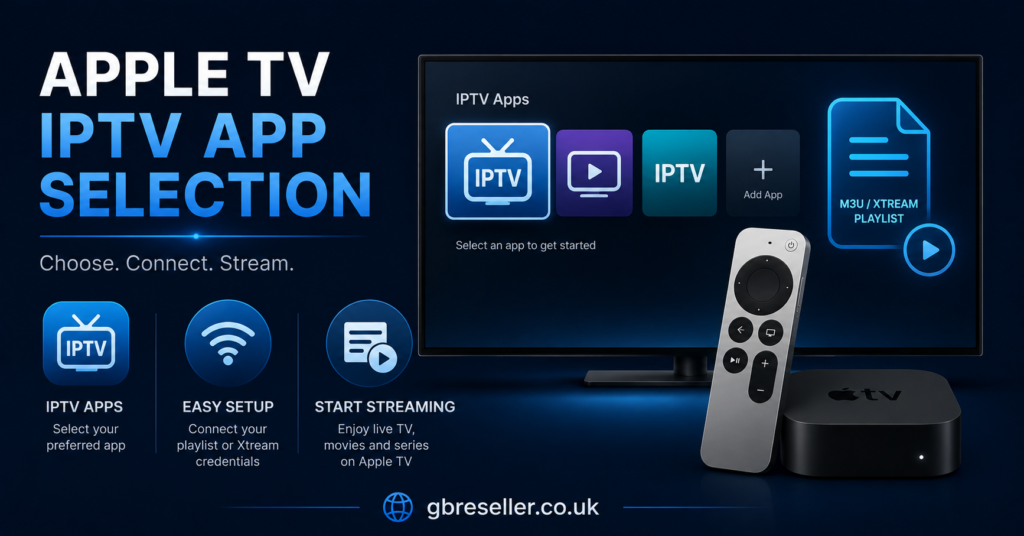
Apple TV does not allow sideloading in the way Android boxes or Firestick devices do, so every app has to come from the official App Store. This is actually a point in Apple TV’s favour for reliability, since apps go through a review process before they appear. Popular choices among UK users include:
- IPTVX, known for a clean interface and support for multiple playlists
- TiviMax, which offers more advanced customisation for people who want granular control
- IPTV Smarters Player, a long standing option with wide format support
- Smarter Player Lite and IBO Pro Player, both commonly used for Xtream Codes logins
None of these apps include channels on their own. They are players, not providers, so you still need an active IPTV subscription to add. Pick based on how much control you want over EPG layout, playlist management, and playback settings rather than picking whichever app appears first in search results.
Step by Step Setup Process
Once you have picked an app, the process is fairly consistent across most players:
- Open the App Store on your Apple TV and search for the app by name.
- Select the official listing and choose Get to download it.
- Open the app once it finishes installing.
- Choose the option to add a new playlist or account.
- Enter either your M3U playlist URL, or your Xtream Codes server address, username, and password.
- Give your channels list a few minutes to load, then check that EPG data appears alongside the channels.
If channels load but EPG data does not, this usually points to a provider side issue rather than something wrong with your Apple TV. Give it time before assuming the app is broken, since EPG data sometimes takes longer to populate than the channel list itself.
Common Problems When You Setup IPTV on Apple TV
| Problem | Likely Reason | Next Action |
|---|---|---|
| App accepts login but no channels appear | Incorrect Xtream Codes details or provider server down | Double check credentials, contact provider support |
| Playback buffers constantly | Weak Wi-Fi signal or overloaded provider server | Switch to Ethernet, ask provider about server load |
| EPG shows no programme data | Provider EPG source not synced yet | Wait, then refresh inside the app settings |
| App crashes on launch | Outdated app version or tvOS update needed | Update both the app and tvOS from Settings |
Pro tip: If you’re testing a new provider, load the playlist during off peak hours first. This isolates whether slow loading is a network issue on your end or a server capacity issue on theirs.
Pro tip: Keep your Apple TV’s tvOS updated. Several IPTV players push compatibility fixes tied to specific tvOS versions, and an outdated system can cause playback errors that look like provider faults but aren’t.
Wired Connection vs Wi-Fi
Apple TV 4K supports Ethernet through a compatible adapter, and this makes a real difference for IPTV specifically, since live streaming is far less forgiving of dropped packets than something like Netflix, which buffers ahead. If your Apple TV sits far from your router, a wired connection or a mesh Wi-Fi extender near the device will usually solve buffering issues that no amount of app switching will fix.
Evaluating an IPTV Provider Before You Commit
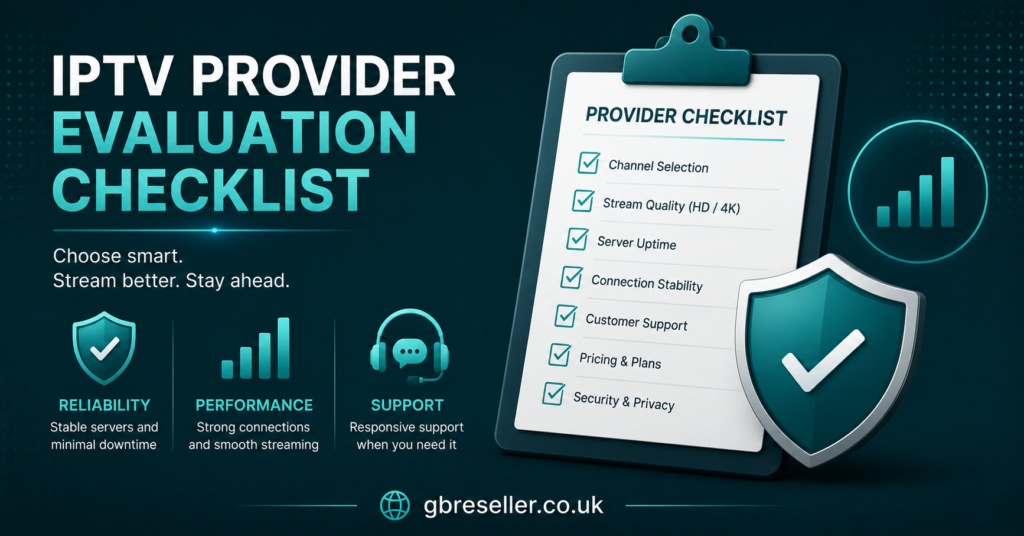
The app you choose matters less than the provider behind it. A well designed player still depends entirely on the quality of the playlist and server it connects to. Providers vary enormously in reliability, and a service like Skip This, used here only as an illustrative example, should be judged on the same basis as any other option: does it offer clear trial terms, transparent pricing, responsive support, and a straightforward refund policy if the service doesn’t work as expected. No app interface can compensate for an unreliable backend.
| Question to Ask | Why It Matters |
|---|---|
| Does the provider offer a trial period? | Lets you test stability before paying |
| What is the refund policy? | Protects you if the service underperforms |
| How is support handled? | Slow support during peak hours is a common complaint |
| Is pricing clear upfront? | Avoids surprise renewal charges |
Understanding the Legal Side
IPTV is a delivery method, not a content type, so the technology itself is neutral. Whether a specific service is legitimate depends on whether the broadcaster or rights holder has authorised that content for distribution. A polished app or a professional looking website is not proof that a provider has the rights to what it streams. If you’re unsure, look for clear business information, transparent terms of service, and honest answers about content licensing rather than relying on how the interface looks.
Guidance for IPTV Resellers Supporting Apple TV Customers
If you run an IPTV reseller business, Apple TV customers tend to generate more support questions than Android box users, mainly because the App Store restricts the number of players available and customers sometimes install the wrong one for their playlist format. Keeping a short setup guide ready to send customers when they buy a subscription saves repeated back and forth. It also helps to test your own panel against two or three of the more common Apple TV apps yourself, so you know exactly what your customers see when something goes wrong. For a closer look at handling subscriber issues efficiently, see how to fix common playback buffering problems, much of which applies across devices, not just Firestick.
Resellers evaluating which panel to run their business on should also look at IPTV reseller credit packages to understand how pricing structures affect the margin available once Apple TV compatible content and EPG support are factored in. A broader library of setup and troubleshooting guides is available at the IPTV reseller guide collection, covering both subscriber and reseller focused topics.
Visible FAQ
Can you Setup IPTV on Apple TV without a third party app?
No. Apple TV does not include a native IPTV player, so you need to install a supported app from the App Store and add your provider’s playlist or login details inside it.
Do I need Xtream Codes or M3U for Apple TV apps?
Most apps support both formats, but you should check with your IPTV provider which one your subscription uses, since entering the wrong format will prevent channels from loading.
Why does my IPTV app keep buffering on Apple TV?
Buffering is usually caused by weak Wi-Fi, an overloaded provider server, or too many devices sharing one connection. A wired Ethernet connection often resolves it if the network is the issue.
Is it legal to use IPTV apps on Apple TV?
The apps themselves are legal players available through the official App Store. Legality depends on whether the specific IPTV service you connect to has the rights to distribute the content it streams.
Can I use more than one IPTV app on Apple TV at once?
Yes, you can install multiple IPTV apps and switch between them, though most people settle on one once they find a player that suits their provider and viewing habits.
Does Apple TV support EPG in IPTV apps?
Most IPTV apps for Apple TV display EPG data if the provider supplies it. If channels load but the guide is empty, it usually means the provider’s EPG source hasn’t synced yet rather than an app fault.
Conclusion
To Setup IPTV on Apple TV, the process comes down to picking a supported app from the official App Store, entering your provider’s playlist or Xtream Codes details correctly, and giving the channel list and EPG time to populate. Most ongoing problems trace back to network stability or the provider’s server rather than the Apple TV itself, so a wired connection and a properly vetted provider solve the majority of complaints. There’s no single “correct” app for everyone, since the right choice depends on your provider’s format and how much customisation you want. If something still isn’t working after checking these basics, your provider’s support team is usually the fastest route to a fix.
Setup Checklist
- Confirm whether your provider uses M3U or Xtream Codes before choosing an app
- Download the IPTV app directly from the official Apple TV App Store
- Enter playlist or login details carefully, avoiding typos in server addresses
- Allow a few minutes for channels and EPG data to fully load
- Switch to a wired Ethernet connection if buffering persists
- Keep tvOS and the app itself updated to avoid compatibility issues
- Check your provider’s trial and refund terms before committing long term