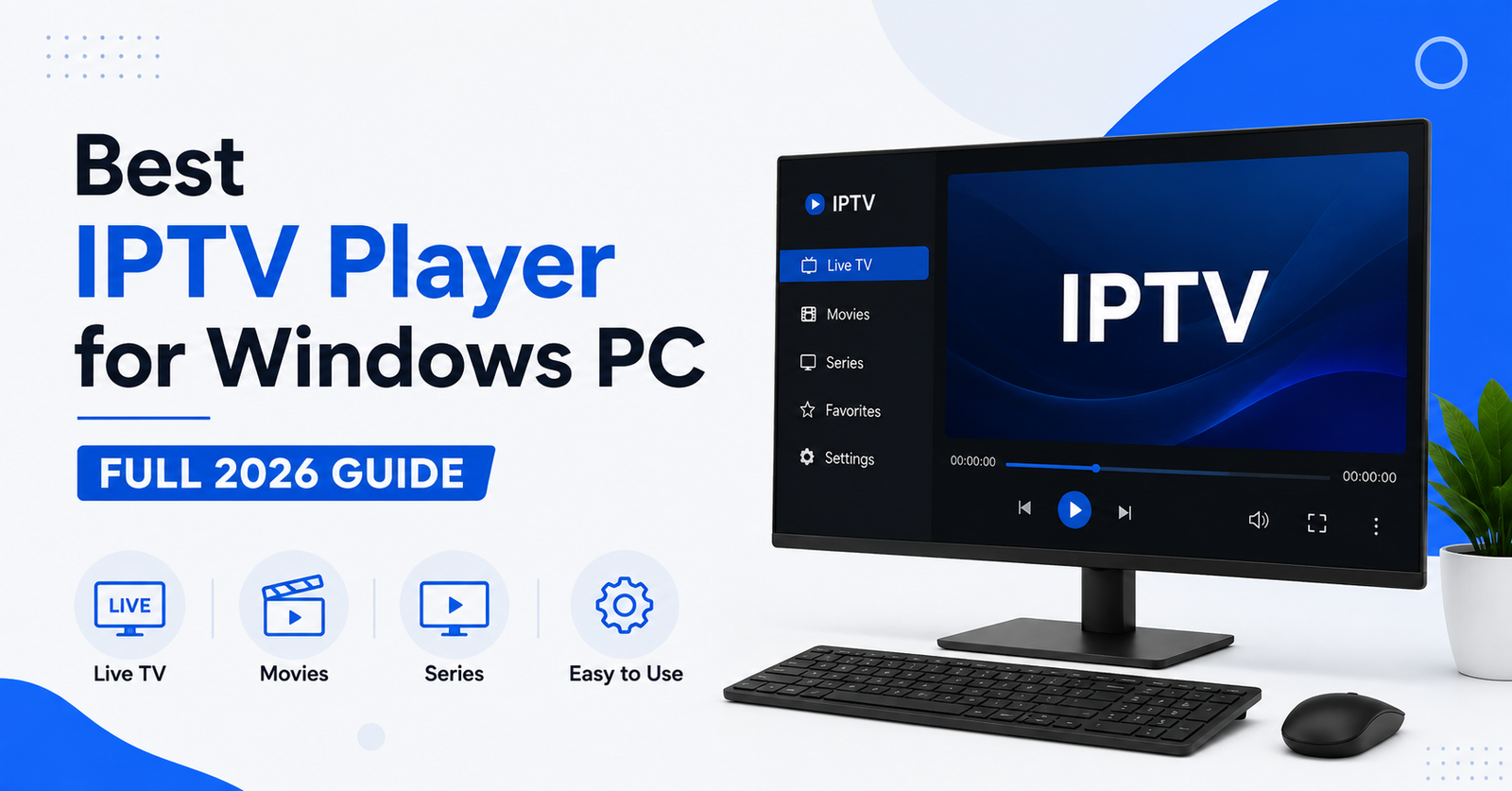

If you’re asking which app to use, the honest answer is that the best IPTV Player for Windows depends on what you already have. VLC Media Player is the simplest starting point because it’s free, plays almost any format, and needs no setup beyond pasting a playlist link. If you want channel logos, an electronic programme guide and a proper live TV layout, MyIPTV Player or IPTV Smarters Pro from the Microsoft Store will feel far more like a normal television app.
Kodi, paired with the PVR IPTV Simple Client add-on, suits anyone who already uses Kodi as a media centre and wants live channels folded into the same interface. There isn’t one universal winner. The right choice comes down to how much setup you’re prepared to do and how the app will fit into the rest of your PC.
What Is the Best IPTV Player for Windows in 2026?
There’s no single app that wins outright. Each player is built for a different type of user, so the right pick depends on how technical you’re willing to get and what your playlist actually needs. Below is an honest look at the players people are genuinely using on Windows 10 and Windows 11 this year, based on what each one actually does rather than marketing claims.
VLC: The Free All-Rounder
VLC Media Player is the obvious first stop for most people. It’s open source, completely free, and handles almost any video or audio format without extra codec packs. To use it with IPTV, open Media, then Open Network Stream, then paste your M3U playlist URL. VLC downloads the playlist and starts playing, with the full channel list appearing under View, then Playlist, grouped by category.
The downside is that VLC wasn’t designed as a dedicated IPTV app. There’s no built in electronic programme guide, no catch up interface, and no Xtream Codes login screen. You’re working with a raw playlist rather than a proper live TV experience. It’s a good test tool and a reliable backup, but not something most people want to live in day to day.
Kodi with PVR IPTV Simple Client: For Power Users
Kodi is a full media centre, and with the PVR IPTV Simple Client add-on installed, it can pull in a live channel list alongside your local library. This is the flexible option: you get a proper EPG, channel groups, and the ability to blend IPTV with your own films and shows in one interface.
The trade off is setup time. You need to install Kodi, add the PVR add-on, configure the M3U or Xtream Codes source, and often add a separate EPG source as well. None of this is difficult once you’ve done it, but it’s a longer process than opening an app and pasting a link. Kodi suits people who already use it for local media and want IPTV added on top, not someone who just wants channels working in five minutes.
IPTV Smarters Pro: A Consistent Cross-Device Interface
IPTV Smarters Pro is popular because the same interface appears on Windows, Android, and other platforms, so switching between a laptop and a phone feels familiar. It supports both M3U playlists and the Xtream Codes API, which generally means faster channel switching and access to catch up TV where the panel supports it.
Pro tip: If you plan to watch on more than one device, choosing a player available on all of them (rather than mixing VLC on the PC with a different app on your phone) saves you from remembering two separate setups.
MyIPTV Player and GSE Smart IPTV: Native Windows Apps
MyIPTV Player is a Universal Windows Platform app from the Microsoft Store, built specifically for live IPTV viewing. It follows normal Windows design conventions, supports M3U playlists with EPG integration, and shows channel logos automatically when the playlist includes them. Setup is a case of entering your playlist and EPG URLs in the settings screen.
GSE Smart IPTV, also available through the Microsoft Store, gives more granular control: multiple playlists, favourites lists, adjustable buffer sizes, and finer video settings. It suits anyone who wants to fine tune playback rather than accept the defaults.
PotPlayer and ProgDVB: Lightweight Alternatives
For older or lower spec PCs, PotPlayer and ProgDVB are worth a look. Both are lightweight, start quickly, and don’t demand much from the processor. Neither is as polished as a dedicated IPTV app, and EPG support is more basic, but if your priority is a fast, no-frills player on modest hardware, they hold up well.
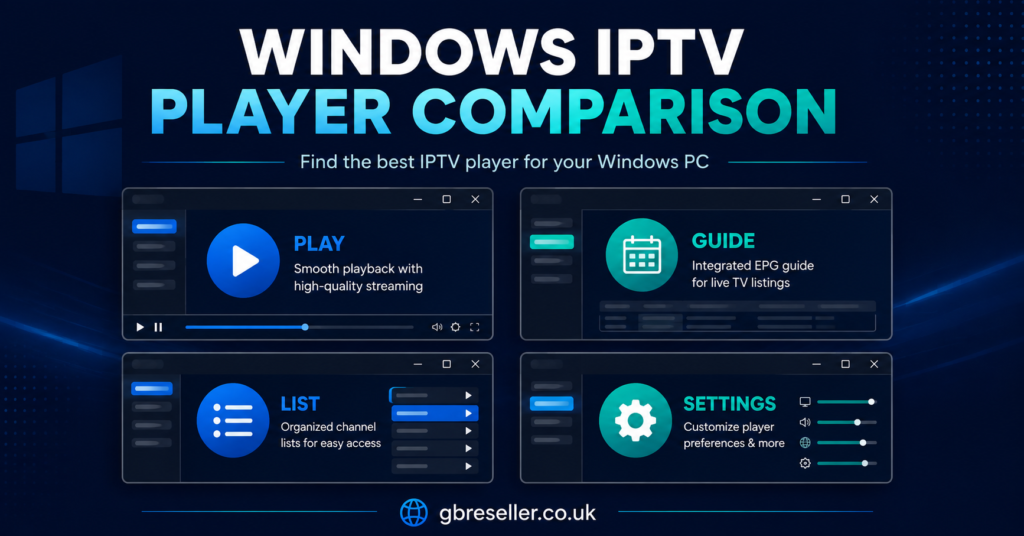
How These Players Compare
| Player | Best For | Limitation |
|---|---|---|
| VLC | Quick testing, universal format support | No EPG, no catch up interface |
| Kodi + PVR client | Blending IPTV with a local media library | Longer setup process |
| IPTV Smarters Pro | Consistent look across several devices | Interface can feel busy for casual viewers |
| MyIPTV Player | Native Windows Store app with EPG | Fewer advanced tuning options |
| GSE Smart IPTV | Fine control over playlists and buffering | Steeper learning curve for beginners |
| PotPlayer / ProgDVB | Older or lower spec PCs | Basic EPG support |
What to Check Before You Choose (Playlist Format, EPG, and More)
Before settling on an app, it helps to know what your subscription actually provides, since not every player supports every format equally well.
- Playlist type. Most IPTV panels offer either an M3U link or Xtream Codes login details. Xtream Codes generally allows faster channel switching and, where supported, catch up TV. Confirm which one your provider gives you before picking a player.
- EPG availability. A programme guide (often called XMLTV) shows what’s on now and what’s coming up. Not every free player displays this cleanly, so check a screenshot or demo before committing.
- Device limits. If your subscription restricts how many devices can stream at once, using several different players across a PC, phone and TV box might count against that limit even though it’s the same account.
- Update frequency. Some Windows Store apps go months without updates, which can eventually cause compatibility problems with newer playlist formats. A quick look at the app’s store page shows the last update date.
Pro tip: Test a playlist in VLC first, even if you plan to use a different app long term. If VLC plays it without errors, you know the fault (if one shows up later) is with the dedicated app, not the playlist itself.
Setting Up an IPTV Player on Windows: The Basics
The setup process is broadly similar across players, even though the menus look different.
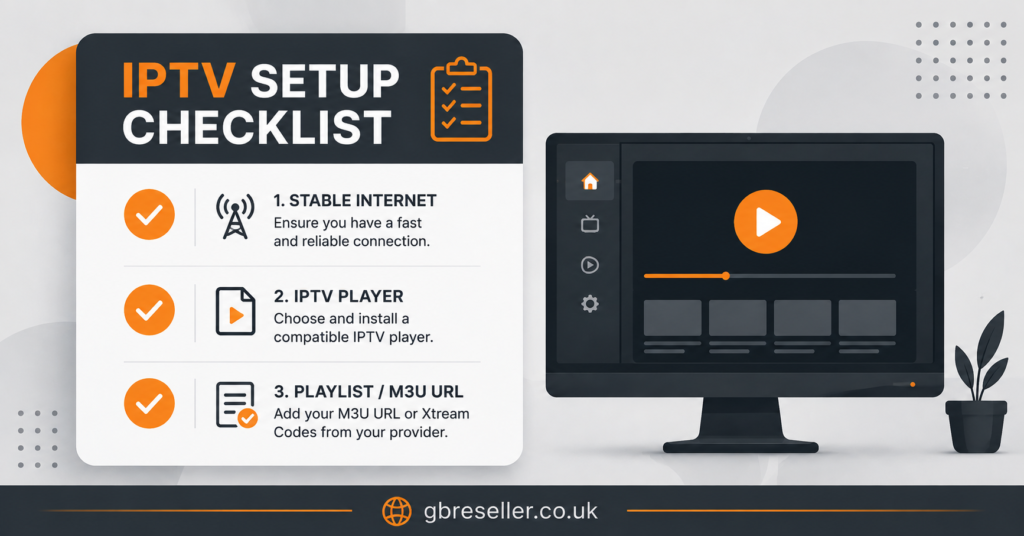
- Install the player, either from the Microsoft Store or the developer’s own site.
- Open the app’s playlist or account settings.
- Enter your M3U URL, or your Xtream Codes server address, username and password, exactly as supplied by your provider.
- Add an EPG URL separately if the app requires one.
- Let the app load the channel list, then check a handful of channels across different categories to confirm playback works.
If channels fail to load at this point, the cause is usually the playlist link itself rather than the player. Providers occasionally change server addresses, so it’s worth confirming your current URL is correct through your UK IPTV reseller’s dashboard or support channel before assuming the app is broken. Guidance on fixing common M3U playback issues applies to Windows players in much the same way it does on streaming boxes.
Subscriber Guidance: Getting the Most from Your Player
If you’re subscribed through a provider such as Skip This, the player you choose sits on top of that service rather than replacing it, so the same evaluation questions apply regardless of which panel you use. Check whether the provider gives clear refund terms, how many devices your plan allows, and whether support is easy to reach if a stream stops working. A well built player can’t fix a poor quality backend, and a great backend still feels frustrating through a clunky app. Both sides matter.
Pro tip: Keep a note of your playlist URL and login details somewhere safe outside the app itself. If you switch players later, or reinstall Windows, you won’t need to chase your provider for the same details twice.
Reseller Guidance: Recommending a Player to Your Customers
Resellers get asked “which app should I use on my laptop” fairly often, and the honest answer is to match the player to the customer’s comfort level rather than pushing one option for everyone. Casual customers usually get on better with MyIPTV Player or IPTV Smarters Pro because the interface looks like a normal television app. Technically confident customers, or anyone already running Kodi for local media, tend to prefer the Kodi route.
It also helps to document a short setup guide for whichever players you support most often, since repeat questions about playlist entry or EPG URLs are one of the more common support tickets resellers deal with. A clear breakdown of panel features that affect playback quality is worth sharing with customers who ask why one device performs better than another on the same subscription.
A Quick Troubleshooting Reference
| Problem | Likely Reason |
|---|---|
| Channels won’t load at all | Incorrect or expired playlist URL |
| Picture freezes but audio continues | Local network congestion or weak Wi-Fi signal |
| EPG shows no programme data | EPG URL missing or not added separately from the playlist |
| Some channels work, others don’t | Server side issue with specific channel feeds |
Conclusion
There isn’t a single app that qualifies as the best IPTV Player for Windows for everyone. VLC is the fastest way to test a playlist with zero setup. MyIPTV Player and IPTV Smarters Pro give you a proper live TV interface with an EPG, straight from the Microsoft Store. Kodi with the PVR IPTV Simple Client suits anyone blending IPTV into an existing media library, and PotPlayer or GSE Smart IPTV cover the lighter and more customisable ends of the spectrum. Start with what matches your existing habits on Windows, confirm your playlist format and EPG availability with your provider, and adjust from there if the first choice doesn’t feel right.
Visible FAQ
Do I need to pay for an IPTV player on Windows?
No. VLC, Kodi, MyIPTV Player and GSE Smart IPTV are all free to install. Any cost involved comes from your IPTV subscription itself, not the player.
Can I use more than one IPTV player with the same IPTV subscription?
Usually yes, since most players just read the same playlist or Xtream Codes login. Check your provider’s device limit though, as running several apps at once may count against it if you’re streaming from more than one at the same time.
Why does my IPTV player show no programme guide?
This is almost always because the EPG URL hasn’t been added separately from the playlist URL. Some players load the channel list automatically but require the EPG link to be entered manually in a different settings field.
Is Kodi harder to set up for IPTV than other players?
It takes more steps, since you need to install the PVR IPTV Simple Client add-on and configure it separately from Kodi itself. Once it’s set up, it doesn’t need repeating unless you reinstall Kodi.
Which IPTV player works best on an older Windows PC?
Lightweight options like PotPlayer tend to run more smoothly on lower spec machines than apps with heavier interfaces, since they use fewer system resources for the same playback.
Does the IPTV player affect stream quality?
The player affects how smoothly the stream is decoded and displayed, but the source quality itself depends on the provider’s servers and your internet connection. A good player can’t fix a weak backend, and a strong backend still needs a stable app to display it properly.