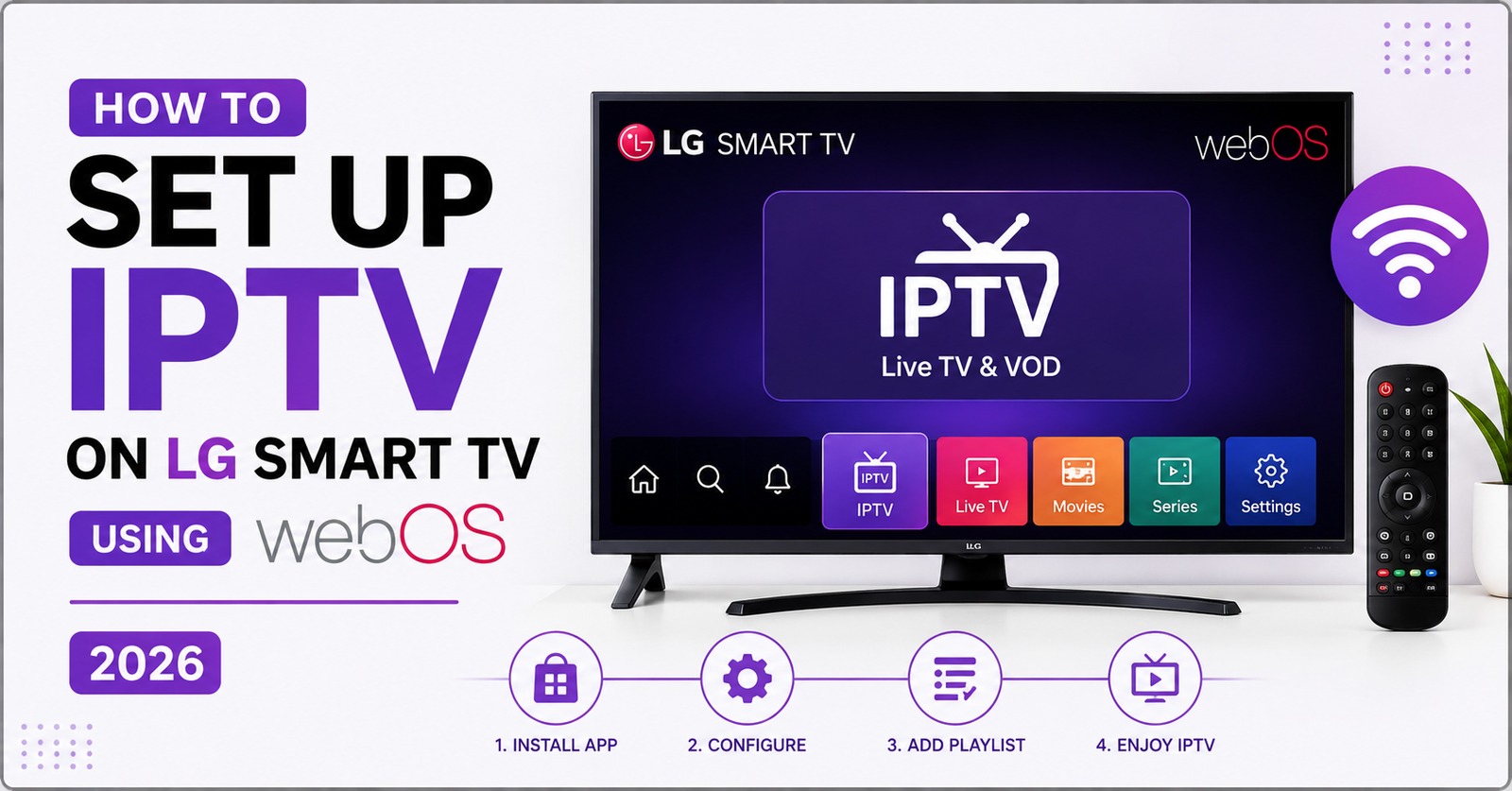

To set up IPTV on LG Smart TV, you need to install an IPTV player app from the LG Content Store, such as IPTV Smarters or SS IPTV, then enter your M3U playlist link or Xtream Codes login details provided by your IPTV service. Once entered, the app loads your channel list and you can start streaming within a few minutes.
What You Need Before You Set Up IPTV on LG Smart TV
Before you touch any settings on your television, gather three things. First, a stable internet connection, ideally wired through ethernet or a strong 5GHz WiFi signal, since IPTV relies entirely on your bandwidth rather than a broadcast signal. Second, your subscription details from your provider, which usually means either an M3U playlist URL or an Xtream Codes username, password, and server address. Third, know your LG TV’s WebOS version, since older models from 2018 and earlier sometimes have a slower or more limited app store experience compared to 2020 and newer sets.
Most UK households already have the internet speed needed. A stable 15 to 20 Mbps connection is generally enough for HD streaming on one device, while 4K content benefits from 40 Mbps or higher. If your WiFi struggles during peak evening hours, a wired connection to your router removes that variable entirely and makes the whole process of getting IPTV running on LG Smart TV far smoother.
Pro Tip: Restart your LG TV and router before starting the setup. A fresh network handshake avoids half the connection errors people run into during their first attempt.
How to Set Up IPTV on LG Smart TV Using the Built In App Store
The simplest way to set up IPTV on LG Smart TV is through the LG Content Store, which comes preinstalled on every WebOS model. Open the Home menu, select the Content Store icon, and search for an IPTV player such as IPTV Smarters Pro, SS IPTV, or GSE Smart IPTV. Not every app appears in every region’s store, so if search comes up empty, you can sideload an app using a USB drive or a third party app store alternative, though the built in store is the safest and fastest route for most people.
Once installed, open the app and you will be prompted to enter your playlist source. This is where your subscription details come in. Providers structure their subscription delivery in slightly different ways, so it helps to compare the login method against what your own IPTV reseller panel actually issues before assuming the wrong format.
How to Set Up IPTV on LG Smart TV With an M3U Playlist
An M3U playlist is essentially a link that tells the app where to pull your channel list from. To set up IPTV on LG Smart TV using this method, open your chosen app, look for an option labeled “Add Playlist” or “M3U URL,” and paste the link exactly as your provider sent it. Give the playlist a name so you can find it again later if you ever need to reinstall, then confirm.
Within a minute or two, the app should populate with your full channel lineup, VOD library, and EPG data if your provider includes it. If the screen stays blank or shows an error, the most common cause is a copy paste mistake, often a missing character at the start or end of the URL. Retype it manually if the paste option is not working correctly on your remote’s on screen keyboard.
Setting Up IPTV on LG Smart TV Using Xtream Codes Login
Some providers issue Xtream Codes credentials instead of a direct M3U link. This method to set up IPTV on LG Smart TV asks for three separate fields: your username, your password, and a server address, usually formatted as a URL with a port number attached. Enter each field carefully, since a single wrong digit in the port number will stop the connection from authenticating.
Xtream Codes logins tend to load faster once connected because the app communicates directly with the panel rather than parsing a static playlist file every time. This is also the format most IPTV reseller panels issue by default, since it gives resellers more control over active connections per subscriber.
Comparing IPTV Player Apps for LG WebOS
| App Name | Best For | EPG Support |
|---|---|---|
| IPTV Smarters Pro | Beginners, clean interface | Yes |
| SS IPTV | Custom playlist management | Yes, manual setup |
| GSE Smart IPTV | Advanced users, multiple lists | Yes |
Each of these apps handles M3U and Xtream Codes formats, so the choice mostly comes down to interface preference rather than technical limitation.
Common Problems When You Set Up IPTV on LG Smart TV
A few issues come up repeatedly. Buffering during peak hours, usually between 7pm and 10pm UK time, is almost always a server load or bandwidth issue rather than a TV problem. Apps crashing on launch often trace back to an outdated WebOS firmware version, so checking for system updates under General Settings before reinstalling anything can save a lot of frustration. Blank channel lists after a correct playlist entry usually mean the provider’s server is temporarily down rather than a mistake on your end.
If you consistently see freezing specifically during live sport, the cause is typically server side congestion rather than your home connection, and switching to a provider with better dedicated infrastructure resolves it far more reliably than restarting your router repeatedly.
Buffering and Playback Fixes on LG WebOS
If buffering continues after confirming your internet speed is adequate, try lowering the stream quality inside the app’s settings menu, since some LG models struggle to decode certain 4K bitrates smoothly. Clearing the app’s cache under Apps Manager also resolves playback stutter that builds up over weeks of use. As a last step, uninstalling and reinstalling the IPTV player often clears corrupted configuration files that accumulate silently over time.
Pro Tip: Keep a second IPTV app installed as a backup. If your primary app has a temporary outage, you can swap your playlist into the backup app in under two minutes without losing viewing time.
Is It Legal to Set Up IPTV on LG Smart TV in the UK?
This is a fair question and deserves an honest answer rather than a dodge. IPTV as a technology is completely legal. It is simply a method of delivering television over an internet connection instead of satellite or aerial signal. Many official broadcaster apps use the exact same underlying technology. What matters legally is the source of the content itself. Streaming from a licensed, authorised provider is no different from using any standard catch up app. Streaming copyrighted material, including certain live sports broadcasts, from unauthorised sources sits in a legal grey area that varies depending on jurisdiction and source, and it is worth understanding that distinction rather than assuming all IPTV falls into one category.
Providers such as britishreseller.com are one example among many operating in this space, and doing basic research into how a provider sources its content is a reasonable step before subscribing to anything.
How to Set Up IPTV on LG Smart TV for Multiple Rooms
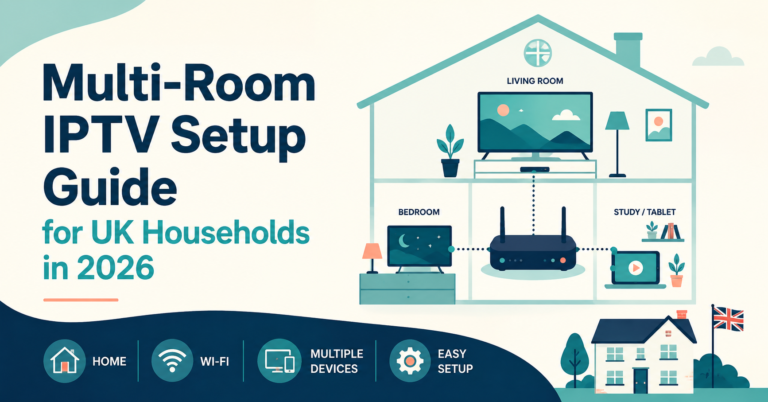
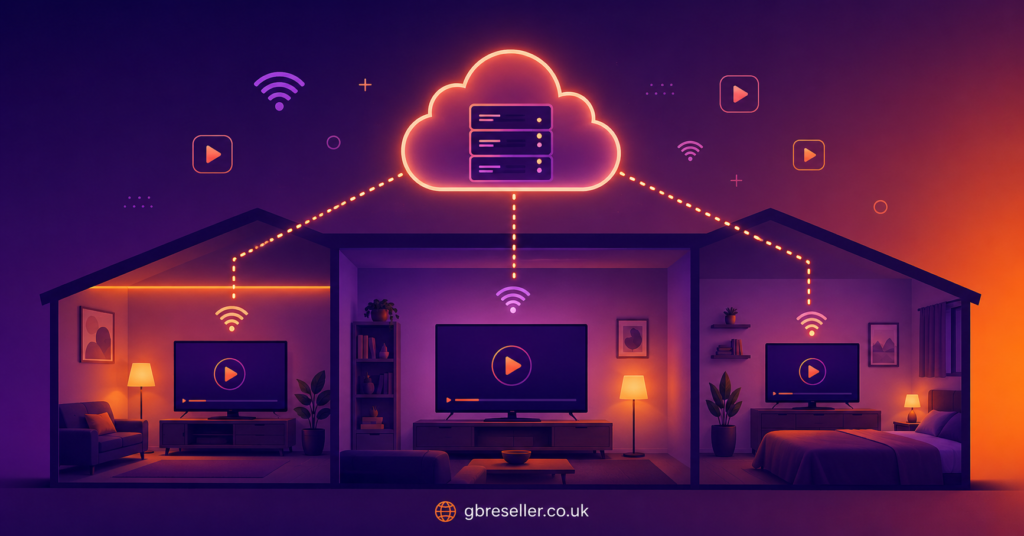
If you plan to run IPTV on more than one television in the same house, check whether your subscription supports multiple simultaneous connections. Trying to use one single connection login on two TVs at once usually causes both screens to freeze or kick each other offline. Providers that offer multi connection lines solve this cleanly, letting each room stream independently without conflict, a detail worth confirming through your best UK IPTV panel before assuming your existing plan covers a second television.
Troubleshooting a Slow Connection When You Set Up IPTV on LG Smart TV
If channels load slowly despite a strong home connection, the bottleneck is often on the provider’s end rather than yours. Overloaded or shared servers strain during high demand windows, particularly around major sporting fixtures. Testing your connection speed at a quiet time of day, then again during peak hours, quickly reveals whether the issue is your network or your provider’s infrastructure. If the pattern only shows up during busy periods, it is worth reviewing your Setup IPTV on Mag Box guide as well, since the underlying diagnostic steps apply across most streaming devices, not just LG televisions.
Frequently Asked Questions
Do I need a smart remote to set up IPTV on LG Smart TV?
No, the standard remote that comes with your television works fine for entering playlist URLs and login details, though a physical keyboard makes typing long server addresses noticeably faster.
Can I use the same IPTV login on two LG TVs at once?
Only if your subscription includes multiple connections. A single connection line will disconnect one device the moment the other starts streaming.
Why does my channel list disappear after a firmware update?
WebOS updates occasionally reset app permissions. Reopening the IPTV app and re-entering your playlist URL usually restores everything within a minute.
Is IPTV Smarters free to use on LG Smart TV?
Yes, the app itself is free to download. You still need an active subscription from a provider to access channels.
Subscriber Checklist
- Confirm your internet speed supports HD or 4K streaming
- Have your M3U link or Xtream Codes login ready before starting
- Check your LG TV’s WebOS version is up to date
- Install a backup IPTV app in case your primary app has issues
Reseller Checklist
- Provide clear Xtream Codes or M3U instructions to new subscribers
- Confirm multi connection availability before promising multi room support
- Keep a simple written guide ready for LG Smart TV specifically
- Monitor server load during peak evening and match day hours
Sub-Reseller Checklist
- Understand the exact login format your upstream panel issues
- Test the setup process yourself on an LG TV before selling it as supported
- Know which app your upstream recommends for WebOS compatibility
- Keep a short troubleshooting script ready for common buffering complaints
Conclusion
Getting IPTV running on an LG Smart TV is a short process once you know which app to install and which login details your provider uses. Whether you go the M3U route or use Xtream Codes credentials, the steps stay consistent: install a player app from the Content Store, enter your details carefully, and confirm your connection can handle the stream quality you want. Most problems people run into come down to a mistyped detail or a temporary server issue rather than anything wrong with the television itself. With the right app and a stable connection, you can set up IPTV on LG Smart TV in under ten minutes and start streaming the same evening.