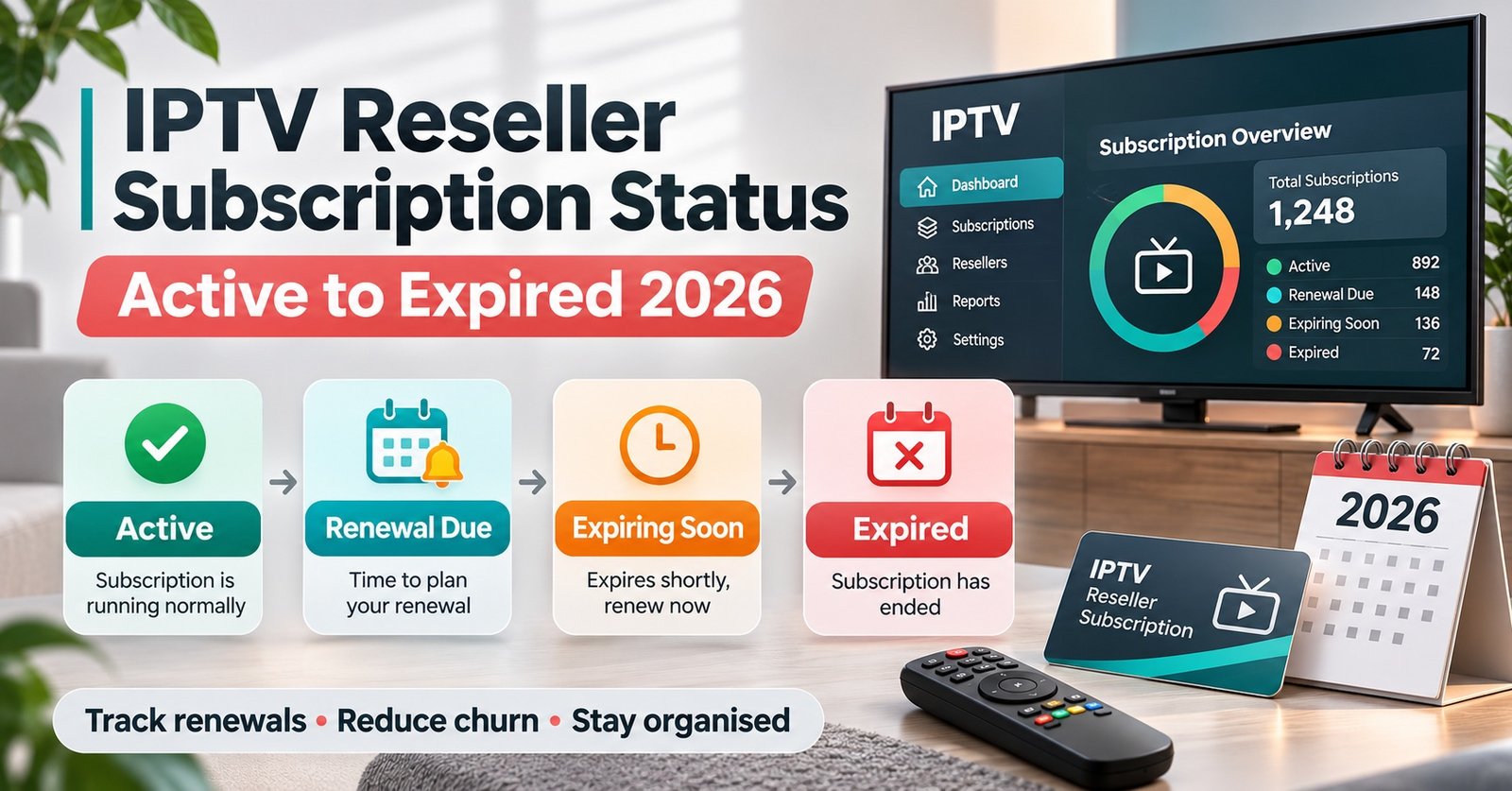

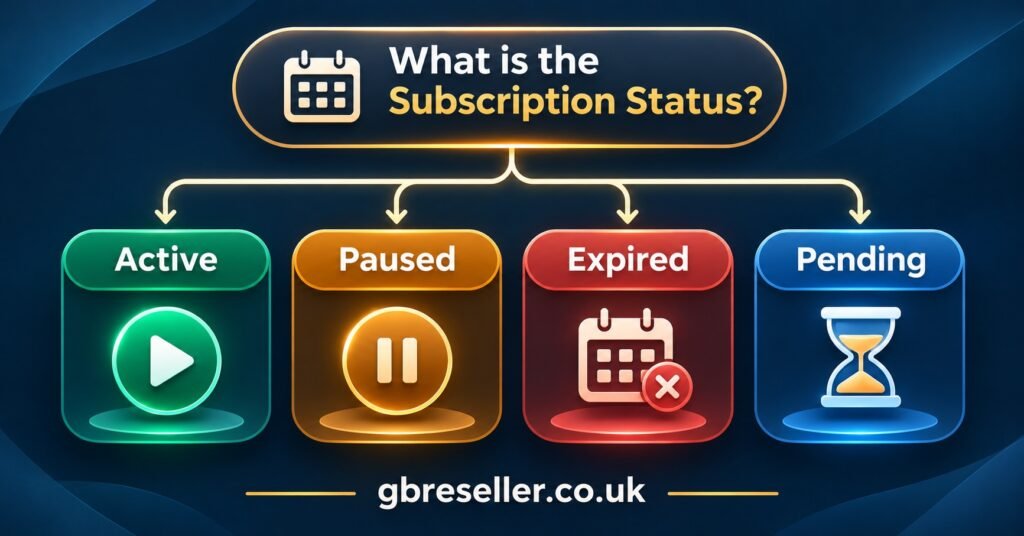
Your IPTV Reseller Subscription Status tells you one thing above everything else: whether a line can play right now, and if it can’t, whose move comes next. An active line should work, so any fault is usually in the device, the app or the connection. A paused line (often labelled disabled) has been switched off on purpose by someone. An expired line has passed its end date and needs renewing. A pending line belongs to an order or activation that hasn’t finished yet, and that’s usually down to payment, credits or a provider queue.
Panels don’t all use the same words, and a lot of support time gets wasted on that. One dashboard says Disabled where another says Suspended or Banned. A trial line can look exactly like a paid one until you open the record. So before you reply to a worried customer, open the line itself rather than reading the list view. Note the expiry date, how many connections are allowed and in use, and who last changed the account. Then match what you find to the real state of the line, not just the coloured badge beside it.
Four States, Four Different People Who Act First
It helps to think of each status as a question of ownership. Once you know who has to act, the next step is usually obvious, and you avoid the common mistake of troubleshooting a device when the real problem is commercial.
| Status | What it usually means | Who acts first |
|---|---|---|
| Active | Line is enabled and within its dates | Customer, with your setup help |
| Paused or disabled | Line switched off by you or the provider | You, after confirming why |
| Expired | End date has passed | Customer, by choosing to renew |
| Pending | Order, payment or activation not complete | You, then the provider if stuck |
Your own reseller dashboard may show extra flags as well, such as a trial marker, a connection count or a note field. They’re worth reading before you decide anything. A line can be active and still unusable because the trial ends tonight, or because three devices are already using a two-connection subscription.
Also bear in mind that the customer’s app doesn’t always show the same picture as your IPTV reseller panel. Many apps store account details when they first log in and only refresh them on a reload or a fresh sign-in. If the panel says the line was renewed an hour ago and the app still shows the old expiry date, ask the customer to log out and back in before you assume anything has gone wrong.
The IPTV Reseller Subscription Status Decision Tree
Work through these questions in order. Each one either gives you an answer or sends you to the next, so you never skip the check that would have solved the problem in thirty seconds.
- Does a line exist for this customer? Search by username, not by the customer’s name or email, because names are often stored differently from how customers spell them. If you can’t find a line, the order never produced one. Treat it as pending and go to question 5.
- Is the expiry date in the past? If yes, the line is expired, whatever badge is showing. Go to the expired section below. If no, carry on.
- Is the line enabled? If it’s disabled, suspended or banned, it’s paused. Find out who did it and why before anything else. If it’s enabled, carry on.
- Is it active, yet the customer can’t watch? This is now a technical problem rather than an account one. Check connections in use, credentials, server details and the app itself.
- Was the order paid without a working line appearing? That’s a stuck pending order. Check your credit balance, the order record and the provider’s activation queue, in that order.
The order matters. A surprising number of “it’s not working” messages turn out to be expired lines, and you’ll only spot that quickly if you check the date before you start asking about routers and apps.
Active, Yet the Customer Says It Isn’t Working
An active status means the account side is fine, so the fault is somewhere between the line and the screen. Start with the connection count. If a two-connection line shows two in use and the customer is trying a third device, the panel is doing exactly what it should. It’s often an old phone or a relative’s TV still logged in.
Next, look at the credentials. A capital O typed as a zero, an extra space copied from a message, or an old password saved in the app will all look like a dead line from the customer’s side. If you’ve recently reset anything, resend the details rather than asking the customer to type them again from memory.
Then check the server address and port entered in the app, and whether the app itself needs updating or clearing. Finally, separate the two kinds of complaint: if one channel or one title won’t play while everything else works, the line is fine and the issue is with that stream, which is a provider matter rather than a status matter.
Pro tip: Ask the customer to send the exact on-screen error message, or a photo of it, before you start. “Authorisation failed” and “Connection refused” point you in very different directions, and you’ll save several rounds of back-and-forth messages.
Paused Lines and the Clock That Keeps Running
Lines get paused for a handful of reasons: a disputed payment, suspected account sharing, a customer going away for a few weeks, or action taken by the provider rather than by you. The status looks the same in each case, so your notes field is the only thing that tells them apart six weeks later.
The point that catches resellers out most often is the expiry date. On many panels, disabling a line does not freeze its subscription period, and the end date keeps counting down while the customer can’t watch. If a customer asks to “pause while I’m on holiday”, check whether your panel or provider actually offers a freeze function before you agree. If it doesn’t, tell the customer honestly that disabling the line will save them nothing, and offer to renew it later instead.
If a line has been disabled and nobody on your side did it, don’t guess at the reason when you reply to the customer. Raise it with your provider first. A message that admits you’re checking is far better than an explanation you later have to take back.
Expired: Renew, Recover or Close
An expired line is a commercial decision more than a technical one. Before you promise a renewal, check your IPTV credits balance, because a renewal you can’t fund straight away turns a simple conversation into a pending order.
You’ll also want to know how your panel calculates the new end date. Some add the new period from today, while others extend from the old expiry date. That changes what the customer actually receives, especially if they come back two weeks late, so learn which rule your panel follows and say it plainly when you quote.
Renewing the same line is usually the better route. The username, password and app setup all stay the same, so the customer has nothing to reconfigure. Creating a new line makes sense only if the old one has been removed or its credentials were shared beyond the people paying for it. Some panels clear out lines that have been expired for a long time, so check the line still exists before you tell the customer their old login will come back.
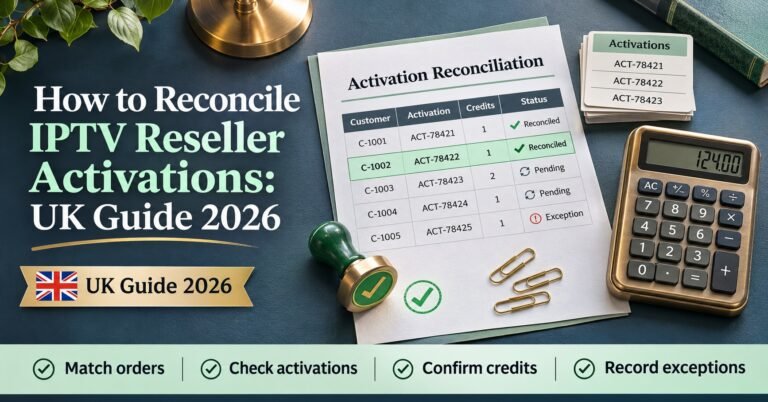
Every renewal should match a payment. If you aren’t already doing this, the guide on reconciling reseller activations against payments shows how to trace each credit spent back to a sale.
Pending Orders and Where They Get Stuck
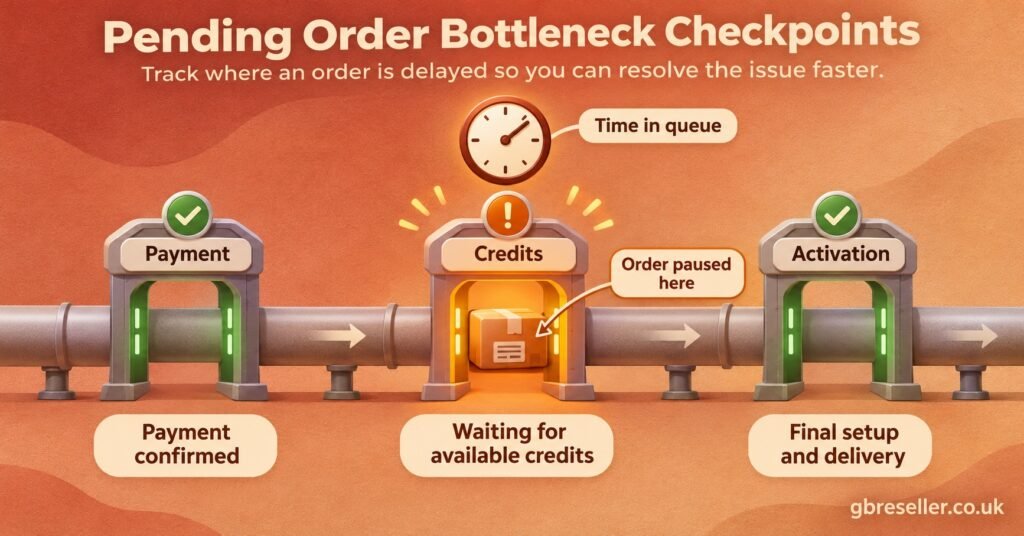
Pending is the status customers find most frustrating, because they’ve usually paid and can’t see why nothing has happened. The cause tends to be one of five things: the payment hasn’t cleared, your credit balance is too low to create the line, the activation is sitting in a provider queue, a sub-reseller order needs approval from the parent account, or a trial is halfway through converting to a paid line.
Work through them in that order, since the first two are entirely within your control. If your balance is the problem, top up from your IPTV reseller credit packages before you contact the customer, so you can give them a firm answer rather than a promise.
Set your own time limit for escalating. Whatever you decide, write it down and stick to it, so a pending order never sits overnight just because nobody owned it. And never tell a customer a line is active while the panel still says pending. Confirm it first, then send the details.
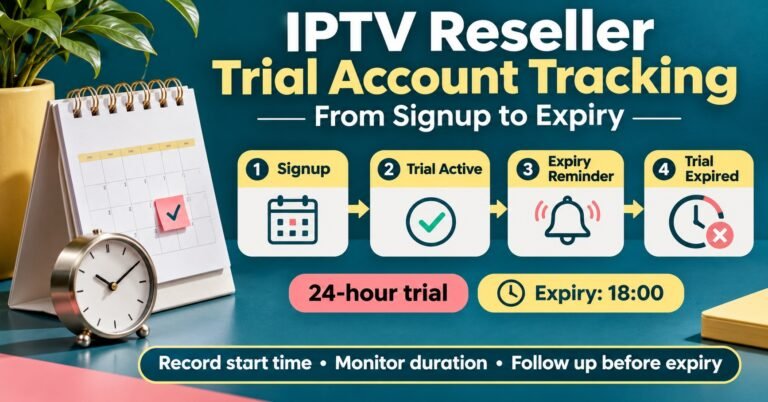
Trials cause their own kind of pending confusion, particularly when a customer pays near the end of a trial. Keeping a log of every trial line, as described in tracking trial accounts from signup to expiry, makes it much easier to see which paid order belongs to which trial.
Templates for Records and Customer Replies
These templates are a starting point for your own screenshots and notes. If you capture your panel to train staff or explain something to a customer, blur usernames, passwords, email addresses and IP addresses first. Those details are personal data under UK data protection law, and a screenshot shared in a chat group is still a disclosure.
Status note for your records
- Line username:
- Status shown in panel:
- Expiry date:
- Connections allowed and in use:
- Last change, and by whom:
- Reason for the change:
- Action taken:
- Customer informed (date and channel):
Customer reply: active line, viewing problem
“Your subscription is active until [date]. Could you send a photo of the message on your screen? In the meantime, please log out of the app and back in, and check no other device is still signed in.”
Customer reply: paused line
“Your line is currently disabled. I’m checking the reason now and will update you by [time]. No changes are needed on your device.”
Customer reply: expired line
“Your subscription ended on [date]. If you’d like to renew, your existing login will keep working once it’s extended, so you won’t need to set anything up again.”
Customer reply: pending order
“I can see your payment and your activation is still in progress. I’ll message you as soon as it’s live, and in any case by [time].”
Change the wording to suit your own tone, but keep the structure: say what the status is, say what happens next, and give a time. The panel features overview shows which dashboard tools you have for extending subscriptions and checking credit balances, which you’ll need for most of these replies.
A Weekly Status Sweep for Resellers
Most status problems are cheaper to catch before the customer notices them. A short weekly review keeps the panel honest:
- Lines expiring in the next seven days, so you can send renewal reminders while they still work
- Pending orders older than your escalation limit
- Disabled lines with no reason recorded in the notes field
- Active lines regularly at their full connection limit, which can point to sharing or a need for an extra connection
- Trial lines that ended without a follow-up
Frequently Asked Questions
Does a paused line still use credits?
Credits are normally spent when a line is created or renewed, not day by day. Pausing a line doesn’t usually return any credits, and on many panels the subscription period keeps running. Check your provider’s terms for the exact rule.
Why does the customer’s app show a different expiry date from the panel?
Most often the app is holding on to account details from its last login. Ask the customer to sign out and back in. If the dates still differ, compare the time zones, as a line ending at midnight in one zone can show as the previous day in another.
Can an expired trial become a paid line without new login details?
That depends on the panel. Some let you convert or extend a trial directly, while others need a fresh line. Find out before you quote, so the customer knows whether they’ll have to re-enter details.
Should I delete expired lines?
Only when you’re sure the customer won’t return, and only after your own records are updated. Deleting removes the easiest route back, which is renewing the same login.
Does an active status mean the service is licensed?
No. A subscription status describes the state of an account, not the rights behind the content. IPTV is a delivery technology, and legal use depends on the provider holding proper distribution rights for what it carries. Work only with providers who can show that.
Getting the Next Step Right
Reading an IPTV Reseller Subscription Status well comes down to treating the badge as the start of a check, not the answer. Confirm the date, the enabled state and the connection count, decide who needs to act, and tell the customer what happens next with a time attached. The limits are real: panels label things differently, freeze functions aren’t universal, and some decisions sit with your provider rather than you. Start by building the status note above into your support routine this week, so that every change you make leaves a record the next person can follow.