
Forget Everything You Read on Reddit About Firestick IPTV
Nine out of ten guides telling you how to set up IPTV on Amazon Firestick are outdated the week they’re published. App interfaces change. Amazon pulls sideloaded apps from unknown sources overnight. DNS blocking rules shift quarterly. And the person writing that tutorial probably hasn’t managed a live panel serving two hundred concurrent connections while a football match is running.
This article is different because it’s built from the other side of the screen — the operator side. Every recommendation here comes from troubleshooting real subscriber tickets, replacing failed middleware configs at 2 AM, and stress-testing Firestick hardware across three generations of the device.
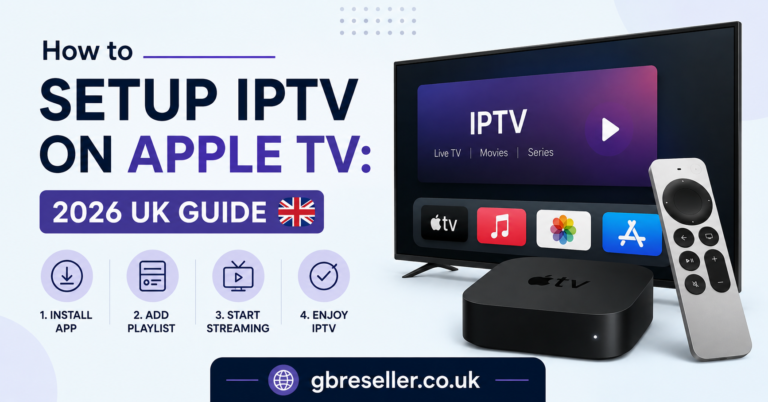
If you want to set up IPTV on Amazon Firestick properly in 2026, you need more than a YouTube walkthrough. You need to understand what’s happening between your panel, your DNS, and that little black stick plugged into your TV’s HDMI port. This Guide Set Up IPTV on Amazon Firestick clear your all doubt about setup device.
Let’s get into it.
Which Firestick Model Actually Handles IPTV in 2026?
Not all Firestick hardware is created equal, and this is where most subscribers make their first mistake. They grab whatever’s cheapest during a Prime sale and then complain about buffering during peak hours.
Here’s the breakdown that matters:
- Fire TV Stick Lite — Bare minimum. Handles SD streams, struggles with HD during peak loads. No ethernet adapter support on older batches. Not recommended for IPTV.
- Fire TV Stick 4K (2nd Gen) — Solid mid-range. Handles HLS streams at 1080p without breaking a sweat. Supports USB ethernet via OTG. This is the sweet spot for most households.
- Fire TV Stick 4K Max — Best option for IPTV. Wi-Fi 6E support, faster processor, and enough RAM to run IPTV apps alongside a VPN without memory crashes.
- Fire TV Cube (3rd Gen) — Overkill for most, but if you’re running a demo setup or showroom panel, the processing headroom is noticeable.
Pro Tip: If a subscriber reports constant app crashes after 20 minutes of streaming, it’s almost always a RAM issue on the Lite model. Upgrading to the 4K Max eliminates 80% of those tickets overnight.
When you set up IPTV on Amazon Firestick, the hardware dictates the ceiling. No amount of server optimization fixes a device that can’t decode the stream it’s receiving.
Preparing Your Firestick Before You Install Anything
Skip this section and you’ll spend twice as long troubleshooting later. Before you set up IPTV on Amazon Firestick, there are three settings you need to change and one thing you need to check.
First, go to Settings → My Fire TV → Developer Options and enable Apps from Unknown Sources. On newer firmware, Amazon has buried this under Settings → My Fire TV → Developer Options → Install Unknown Apps, where you’ll need to toggle permissions per app (usually the Downloader app or Silk browser).
Second, disable Data Monitoring. Amazon tracks app usage and bandwidth consumption. For IPTV, this background process eats into the limited RAM and occasionally interferes with persistent streaming connections.
Third, check your firmware version. Fire OS 8 and later introduced stricter sideloading restrictions. If you’re on an older build, update first — not because the restrictions help you, but because older firmware has known Wi-Fi driver bugs that cause random disconnections during long streams.
| Preparation Step | Why It Matters |
|---|---|
| Enable Unknown Sources | Required for sideloading any IPTV app |
| Disable Data Monitoring | Frees RAM, reduces background interference |
| Update Firmware | Fixes Wi-Fi driver bugs, stabilises Bluetooth |
| Connect Ethernet (OTG) | Eliminates Wi-Fi congestion as a variable |
One thing most guides forget: restart the Firestick after making these changes. A cold reboot clears cached permission states and ensures Developer Options are fully active.
The Downloader Method: Sideloading IPTV Apps Step by Step
This is the most reliable way to set up IPTV on Amazon Firestick if the app you need isn’t available on the Amazon App Store — which, for most IPTV players, it isn’t.
Install the Downloader app from the Amazon App Store. It’s free, it’s legitimate, and it’s maintained regularly. Once installed, open it and enter the direct URL of the APK you need. Your IPTV provider should supply this URL — if they don’t, that’s a red flag about their operation.
Type the URL carefully. One wrong character and you’ll either get a 404 error or download the wrong file. After the APK downloads, tap Install, wait for the confirmation, then tap Open.
Pro Tip: Bookmark the APK URL inside Downloader. IPTV apps update frequently — sometimes weekly — and having the URL saved means you can reinstall or update without hunting through old emails or Telegram messages.
Once the app opens, you’ll need your login credentials or M3U/Xtream Codes API details. This is where the panel side of the operation connects to the subscriber side, and it’s worth understanding both.
Xtream Codes API vs M3U Playlist: Which Login Method to Use
When you set up IPTV on Amazon Firestick, you’ll typically enter your service details in one of two formats. Choosing the right one affects EPG loading, channel sorting, and even buffering behaviour.
Xtream Codes API uses a server URL, username, and password. The app communicates directly with the panel’s API, pulling channel categories, EPG data, and VOD libraries dynamically. This is the preferred method for any serious IPTV operation because it allows the provider to push changes — new channels, category reorganisations, catch-up TV toggles — without the subscriber needing to do anything.
M3U Playlist is a static URL pointing to a text file containing every channel’s stream address. It works, but it’s brittle. If the provider changes a server IP or restructures their channel list, the M3U breaks until the subscriber manually refreshes or re-enters the URL.
- Xtream Codes API: Dynamic updates, EPG auto-load, category sorting, catches server migrations automatically
- M3U: Static, breaks on server changes, limited EPG support, requires manual refresh
For IPTV UK resellers reading this — always push Xtream Codes login to your subscribers. M3U generates more support tickets per subscriber than any other single factor. Every time you set up IPTV on Amazon Firestick for a customer, default to API credentials.
Picking the Right IPTV App for Firestick: A Real Comparison
The app you install matters more than most people realise. Not all IPTV players handle HLS streams the same way, and some choke on EPG data that others render cleanly.
Here’s what actually performs in 2026 based on field testing across hundreds of subscriber setups:
| App | EPG Support | Xtream API | Catch-Up | Multi-Connection | Buffer Handling |
|---|---|---|---|---|---|
| TiviMate | Excellent | Yes | Yes | Yes (Premium) | Aggressive pre-buffer |
| IPTV Smarters Pro | Good | Yes | Limited | No | Standard |
| OTT Navigator | Excellent | Yes | Yes | Yes | Configurable |
| iMPlayer | Good | Yes | Yes | No | Moderate |
| XCIPTV | Basic | Yes | No | No | Minimal |
TiviMate remains the gold standard for Firestick. Its buffer engine is configurable, its EPG renderer is fast, and it handles mid-stream server failovers better than anything else on the market. The premium version is worth the cost for any subscriber watching more than casually.
Pro Tip: OTT Navigator is the sleeper pick for 2026. Its buffer configuration lets you set pre-roll buffer size in seconds, which is invaluable when your uplink server is under load during peak sporting events. Recommend it to technically confident subscribers.
When you set up IPTV on Amazon Firestick and choose the wrong player, you inherit every limitation of that player’s decoder. Choose carefully.
Entering Your IPTV Credentials on Firestick Without Losing Your Mind
The Firestick remote wasn’t designed for typing URLs and passwords. This is a minor point that creates major frustration, so here’s how to handle it.
Option one: install the Amazon Fire TV app on your phone. It gives you a full keyboard over Wi-Fi, making credential entry painless. This alone cuts setup time in half.
Option two: use a Bluetooth keyboard. Any cheap wireless keyboard pairs with Firestick via Settings → Controllers & Bluetooth Devices → Other Bluetooth Devices. For resellers doing multiple setups in a day, this is non-negotiable.
Once inside your IPTV app, navigate to the login or playlist section. For Xtream Codes API, you’ll enter three fields:
- Server URL (e.g., http://your-server.com:port)
- Username
- Password
For M3U, you paste the full playlist URL into a single field.
After entering credentials, the app will connect to your panel, pull the channel list, and begin loading EPG data. First-time EPG loads can take 30 seconds to two minutes depending on how many channels your provider carries and whether their EPG server is properly load-balanced.
If the login fails, check for trailing spaces in the username or password fields. The Firestick keyboard occasionally adds a space after autocorrect suggestions, and Xtream Codes authentication is space-sensitive. This one issue accounts for roughly a quarter of all “my login doesn’t work” tickets.
DNS Configuration: The Step Most Guides Completely Ignore
Here’s where we separate operators from copycats. You can set up IPTV on Amazon Firestick perfectly — right app, right credentials, right hardware — and still get blocked or buffered because your DNS is working against you.
ISPs in the UK and across Europe have deployed increasingly aggressive DNS-based blocking since late 2024. When your Firestick uses your ISP’s default DNS, every stream request passes through their resolver first. If they’re filtering IPTV-associated domains, your streams either fail to connect or throttle to unwatchable quality.
Change your Firestick DNS manually:
Go to Settings → Network → [Your Wi-Fi Network] → Press the menu button → Advanced → IP Settings → Static. Enter your router’s IP as the gateway, set DNS 1 to 1.1.1.1 (Cloudflare) or 8.8.8.8 (Google), and DNS 2 to 9.9.9.9 (Quad9).
This routes your DNS lookups outside your ISP’s resolver chain. It doesn’t make you invisible, but it sidesteps the most common layer of DNS poisoning that ISPs use to disrupt IPTV stream connections.
Pro Tip: For an extra layer, configure DNS-over-HTTPS at the router level rather than per-device. This encrypts DNS queries entirely, preventing ISP deep packet inspection from even seeing which domains you’re resolving. Instruct subscribers with compatible routers to enable DoH in their router firmware.
VPN or No VPN: The Firestick Dilemma Nobody Answers Honestly
Every guide says “use a VPN.” Very few explain the trade-off you’re actually making when you set up IPTV on Amazon Firestick behind a VPN tunnel.
A VPN encrypts your traffic and masks your connection from ISP-level monitoring. That’s the upside, and it’s significant in markets where ISPs actively throttle streaming traffic based on packet signatures.
The downside: a VPN adds latency. Every packet now travels to a VPN server before reaching the IPTV server, then back again. On a Firestick 4K Max with Wi-Fi 6E, the overhead is manageable — usually 10-30ms added latency. On a Stick Lite over congested 2.4GHz Wi-Fi, the overhead can push you into buffering territory.
- Use a VPN if your ISP throttles streaming traffic or blocks IPTV domains
- Skip the VPN if your connection is clean and you’re already using alternative DNS
- Never use a free VPN — they inject ads, log traffic, and cap bandwidth
For resellers: don’t recommend a specific VPN brand to your subscribers. Instead, tell them what to look for — WireGuard protocol support, a UK server in London or Manchester, and a kill switch. Let them choose. This protects you from liability if the VPN underperforms.
Fixing Buffering After You Set Up IPTV on Amazon Firestick
Buffering is the number one complaint in IPTV, and it’s rarely caused by what subscribers think. Most assume their internet is slow. Usually, the internet is fine. The problem sits somewhere between the panel, the CDN, and the device’s buffer settings.
Start with the basics. Run a speed test directly on the Firestick using the Silk browser or a speed test app. You need at least 15 Mbps for stable HD streaming and 35 Mbps for 4K. If speeds are below that on the Firestick but fine on your phone, the issue is Wi-Fi signal strength to the device — not your broadband speed.
Next, check the IPTV app’s buffer settings. In TiviMate, go to Settings → Playback → Buffer Size and set it to at least 2 seconds. In OTT Navigator, you can configure this more granularly.
If buffering persists during peak hours (evenings, weekends, major sporting events) but works fine at off-peak times, the bottleneck is server-side. Your provider’s uplink is saturated. No amount of device-side tweaking fixes an overloaded origin server.
Pro Tip: Ask your IPTV provider whether they use backup uplink servers with automatic failover. Operators running single-origin architectures without CDN distribution will always buffer during peak load. If they can’t answer the question, consider that your answer.
Why Your Firestick IPTV Setup Fails After a Few Weeks
You set up IPTV on Amazon Firestick, everything works beautifully for a fortnight, and then it falls apart. Channels won’t load. The EPG vanishes. The app crashes on launch. This pattern is so common it deserves its own section.
Three things cause this cycle:
App cache bloat. IPTV apps cache EPG data, channel logos, and stream metadata locally. On a device with 8GB of storage, this fills up fast. Go to Settings → Applications → Manage Installed Applications → [Your IPTV App] → Clear Cache every two weeks.
Fire OS automatic updates. Amazon pushes firmware updates that occasionally reset Developer Options or revoke sideloaded app permissions. After any Fire OS update, verify that your IPTV app still has permission to run under Settings → My Fire TV → Developer Options → Install Unknown Apps.
Provider-side server migrations. When your IPTV provider changes server IPs or rotates domains (which responsible operators do regularly to stay ahead of blocking), M3U playlists break immediately. Xtream Codes API connections usually survive because the panel handles the redirect. Another reason to always use API login.
| Symptom | Likely Cause | Fix |
|---|---|---|
| App crashes on launch | Cache bloat or RAM | Clear cache, restart device |
| Channels load but buffer | Server overload or DNS block | Switch DNS, check provider status |
| EPG missing or outdated | EPG server down or cache stale | Refresh EPG in app settings |
| Login rejected | Provider rotated credentials | Re-check credentials, contact provider |
| App disappeared | Fire OS update revoked permission | Re-enable Unknown Sources, reinstall |
Ethernet Over Wi-Fi: The Upgrade That Eliminates Half Your Problems
If you’re serious about getting a stable connection when you set up IPTV on Amazon Firestick, stop relying on Wi-Fi entirely. The single most impactful hardware upgrade is a USB ethernet adapter connected through an OTG cable.
The Firestick 4K and 4K Max support ethernet via a micro-USB or USB-C OTG adapter (model-dependent). Amazon sells their own branded adapter, but any 100Mbps USB ethernet dongle works. Once connected, the Firestick automatically prioritises the wired connection over Wi-Fi.
Why does this matter so much? Wi-Fi introduces three variables that wreck IPTV reliability: signal interference from neighbouring networks, bandwidth contention from other household devices, and latency spikes during channel changes. Ethernet eliminates all three.
For resellers provisioning multiple Firestick setups in a household — say a subscriber with sticks on three TVs — ethernet on the primary viewing device dramatically reduces the support load. The majority of buffering tickets trace back to Wi-Fi congestion, not server issues.
Pro Tip: When a subscriber insists Wi-Fi is fine because their phone speed test shows 100 Mbps, remind them that the Firestick is often placed behind a TV, inside a cabinet, or near other electronics generating interference. Signal strength at the phone is irrelevant — signal strength at the Firestick is what counts.
What Resellers Get Wrong When Helping Subscribers Set Up IPTV on Amazon Firestick
If you’re a reseller sending out login credentials and a one-line setup guide, you’re building churn into your business model. Every subscriber who struggles with setup is a subscriber who blames your service — not their device, not their internet, not their own patience.
Build a setup flow that your subscribers can follow without contacting you. That means:
- A short video walkthrough (screen recorded on your own Firestick, under 5 minutes)
- Written steps with screenshots matching the current Fire OS version
- A troubleshooting FAQ covering the five most common issues (login failure, buffering, EPG not loading, app crashes, no sound)
The operators who retain subscribers at the highest rates aren’t the ones with the most channels or the cheapest credits. They’re the ones who make setup painless and provide fast support when things go wrong.
If you’re running a reseller panel and want to set up IPTV on Amazon Firestick for your subscribers with minimal friction, invest in documentation before you invest in more channels.
Keeping Your Firestick IPTV Setup Running Smoothly in 2026
Maintenance is where longevity lives. After the initial setup, there’s a short list of things to do monthly that prevent 90% of recurring issues.
Clear app cache once every two weeks. Restart the Firestick weekly — not sleep mode, a full restart via Settings → My Fire TV → Restart. Check for IPTV app updates via the Downloader app monthly. Verify DNS settings haven’t reverted after Fire OS updates.
If your provider communicates server changes via Telegram or WhatsApp groups, actually read those messages. Most “my IPTV stopped working” situations are resolved by information the provider already sent out — the subscriber just didn’t read it.
For resellers, set up a simple status page or broadcast channel where you push server updates, maintenance windows, and known issues. This pre-empts support tickets and builds trust with your subscriber base. The perception of reliability matters almost as much as actual uptime.
Frequently Asked Questions
How long does it take to set up IPTV on Amazon Firestick from scratch?
The entire process — from enabling Developer Options to entering your credentials and loading channels — takes around 10 to 15 minutes if you have your login details ready. First-time EPG loading adds another minute or two depending on your provider’s channel count. Using a phone keyboard app or Bluetooth keyboard cuts the typing time significantly.
Can I set up IPTV on Amazon Firestick without sideloading?
A handful of IPTV players are available directly on the Amazon App Store, but most full-featured apps like TiviMate require sideloading via the Downloader app. Sideloading is straightforward and safe as long as you use APK URLs provided directly by your IPTV provider or the app developer’s official site.
Does the Firestick Lite support IPTV streaming?
Technically yes, but performance is poor. The Lite model has limited RAM and no ethernet adapter support, which means it struggles with HD streams during peak hours and crashes frequently with EPG-heavy apps. The 4K or 4K Max models are far better suited for IPTV.
Will a VPN slow down my IPTV streams on Firestick?
It depends on the VPN protocol and server distance. WireGuard-based VPNs typically add 10-30ms of latency, which is barely noticeable. OpenVPN connections add more overhead and can cause buffering on lower-spec Firestick models. If your ISP isn’t actively blocking or throttling, you may not need a VPN at all.
Why does my IPTV stop working after a Fire OS update?
Amazon’s firmware updates occasionally reset Developer Options permissions or revoke sideloaded app access. After any update, check that “Install Unknown Apps” is still enabled for your IPTV app. In some cases, you may need to reinstall the APK entirely through the Downloader app.
How do I know if my ISP is blocking IPTV on my Firestick?
If streams load on mobile data or a different network but fail on your home broadband, ISP-level blocking is likely. Switching your Firestick DNS to Cloudflare (1.1.1.1) or Google (8.8.8.8) resolves most DNS poisoning-based blocks. Persistent blocking may require a VPN with a server outside your ISP’s filtering region.
What’s the difference between Xtream Codes API and M3U for Firestick setup?
Xtream Codes API connects dynamically to your provider’s panel, pulling live channel data, EPG, and VOD libraries automatically. M3U is a static playlist URL that breaks whenever the provider changes servers. API login is more reliable, generates fewer support issues, and is the recommended method for any Firestick setup.
Can I run two IPTV apps on the same Firestick simultaneously?
You can install multiple IPTV apps, but running two simultaneously isn’t practical. The Firestick doesn’t support true split-screen multitasking for streaming apps, and running two decoders concurrently would exceed the device’s memory and processing capacity. Use one primary app and keep a backup installed for failover.
Your Firestick IPTV Success Checklist
Choose the right hardware — Firestick 4K or 4K Max, never the Lite for IPTV
Enable Developer Options and Unknown Sources before installing anything
Install the Downloader app and bookmark your provider’s APK URL for future updates
Always use Xtream Codes API login over M3U playlists — fewer tickets, fewer headaches
Change DNS to Cloudflare (1.1.1.1) or Google (8.8.8.8) to bypass ISP-level DNS poisoning
Invest in a USB ethernet adapter with OTG cable for your primary viewing Firestick
Configure buffer settings in your IPTV app — minimum 2 seconds pre-roll in TiviMate
Clear app cache every two weeks and fully restart the device weekly
Verify Developer Options haven’t been reset after every Fire OS update
Ask your provider about backup uplink servers and CDN distribution before committing
Build a subscriber setup guide with screenshots matching the current Fire OS version
Start your IPTV reseller panel operation with the right infrastructure — explore credit packages and panel options at britishseller.co.uk to get your business running on solid ground