
The Mag Box Setup Mistake That Generates Half Our Support Tickets
Here’s something most “how-to” articles won’t tell you: roughly four out of every ten Mag box support requests we handle have nothing to do with the box being faulty. The customer typed the portal URL with a trailing slash, or fat-fingered a single character in the MAC-bound portal, and then spent an hour convinced the hardware was dead. The Mag box is one of the most reliable pieces of IPTV hardware ever made — Infomir has been shipping them since the early 2010s — and yet it generates a disproportionate volume of confusion. Not because it’s complicated. Because the setup process is unforgiving of small errors and almost nobody explains why a step matters.
So this is the guide I wish we could hand every new subscriber and UK IPTV reseller. If you want to setup IPTV on Mag box correctly the first time — and avoid the cascade of problems that follow a sloppy install — read this in order.
this Guide Setup IPTV on Mag Box clear your all doubt about IPTV Mag Box.
What You’re Actually Working With Before You Touch Anything
A Mag box is not a streaming app. It’s a dedicated set-top box (STB) running a stripped-down Linux portal system. That distinction matters because it changes how you setup IPTV on Mag box compared to a Firestick or Android TV. There’s no app store, no sideloading, no APK. The box boots into a portal — a remote interface your provider controls — and everything flows through that.
The models you’ll most commonly encounter in the UK:
| Model | Status | Notes |
|---|---|---|
| MAG 254 | Legacy, still widespread | Reliable but no HEVC/H.265 support |
| MAG 322/323 | Common workhorse | HEVC support, good for most streams |
| MAG 324/325 | Mid-tier | Faster chipset, smoother EPG |
| MAG 424/425 | Current-gen | 4K, H.265, fastest portal loading |
The single most important number on that box is the MAC address. It’s printed on a sticker underneath and shown in the network settings. Your provider binds your subscription to that MAC. Get it wrong by one character and nothing will ever load — which, predictably, is the second most common ticket we see.
Pro Tip: Before you do anything else, photograph the MAC sticker with your phone. Nine times out of ten the print rubs off the underside within a year, and when you need to migrate providers or troubleshoot, that photo saves a frustrating evening of squinting under torchlight.
The Network Step Everyone Rushes Through
You cannot setup IPTV on Mag box without a stable connection, and this is where the first real failure point lives. Mag boxes ship with Ethernet only on most models — Wi-Fi requires a specific Infomir USB dongle, and third-party adapters almost never work because the firmware doesn’t carry the drivers.
If you’re going wired, plug in before powering on so the box grabs an IP via DHCP automatically. If you’re on Wi-Fi:
- Navigate to the gear/settings icon on the boot screen
- Open Network → Wireless (WiFi)
- Select your SSID and enter the password
- Confirm the box pulls an IP under Network → Status
A wired connection is genuinely better here, and not for the reasons people assume. It’s not just stability — it’s that IPTV streams over Mag boxes use steady-bitrate HLS delivery, and Wi-Fi interference causes micro-dropouts that the box handles badly, freezing rather than buffering gracefully. During a busy Saturday football slate, that difference is the gap between a watchable match and a slideshow.
Pro Tip: Set a DNS manually rather than letting the router assign it. We’ll come back to why, but punch in 1.1.1.1 (Cloudflare) or 8.8.8.8 (Google) under Network → Advanced. This alone prevents a whole category of “channels load then die” problems caused by ISP DNS resolution.
Entering the Portal — The Part That Actually Loads Your Channels
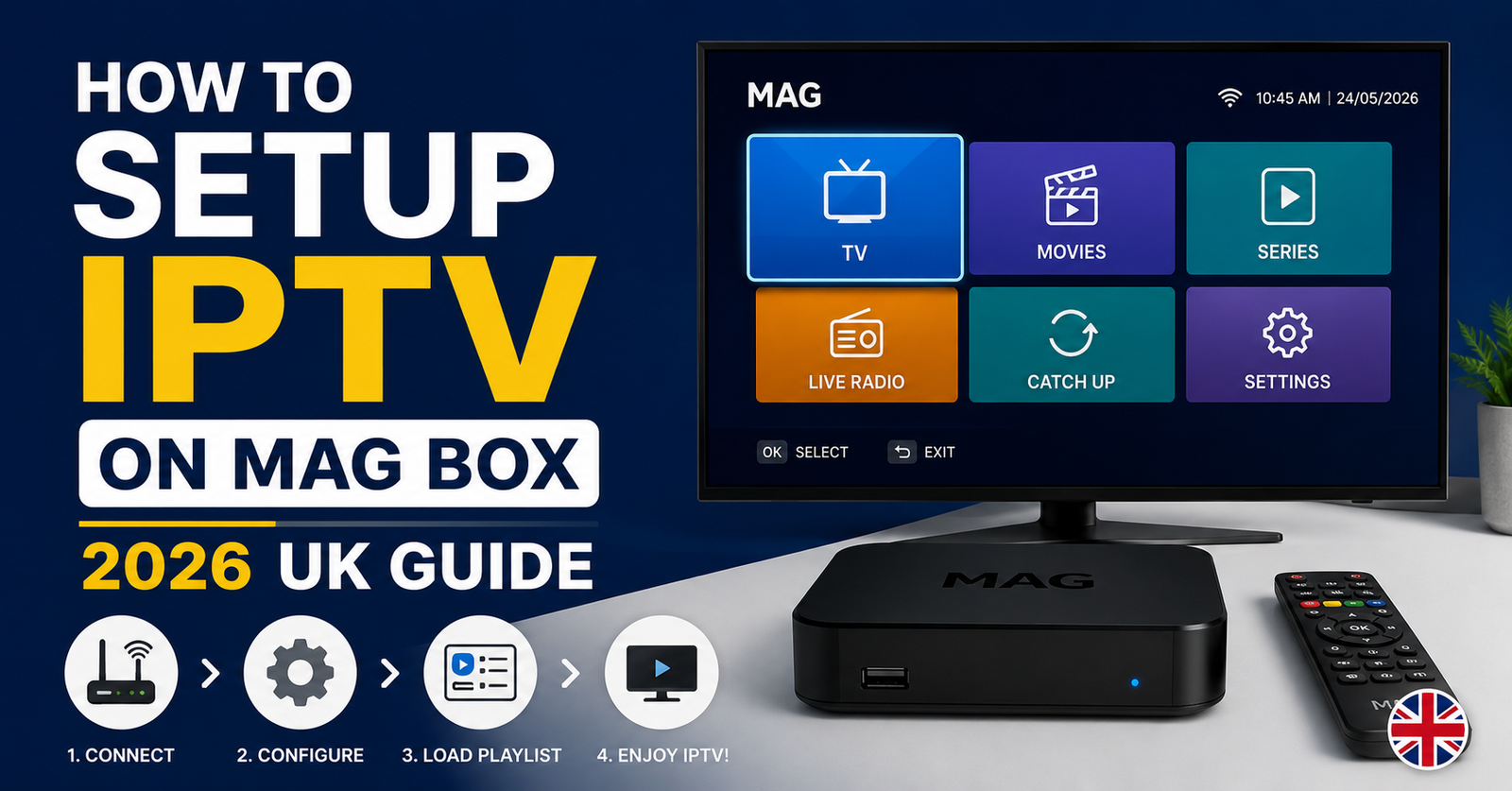
This is the core of how you setup IPTV on Mag box. Your provider gives you a portal URL — something ending in /c/ or /stalker_portal/c/. That URL is the entire service. Here’s the sequence:
- From the main screen, go to Settings (the gear icon)
- Open System Settings → Servers → Portals
- In Portal 1 URL, type the exact address your provider sent
- Leave Portal 2 blank unless given a backup
- Save, then exit fully and reboot the box (this is not optional — the portal only loads on a clean restart)
After reboot, the box should pull your channel list and EPG. If it does, you’ve successfully managed to setup IPTV on Mag box and you’re done.
If it doesn’t, do not panic and do not reset to factory. The error you see tells you exactly what’s wrong, and that’s the next section.
Pro Tip: Type the portal URL into a notes app first, then read it back character by character before entering it on the box remote. The on-screen keyboard makes it easy to confuse a lowercase L with a 1 or an O with a 0. Easily a third of “portal not loading” tickets are a single mistyped character.
Decoding the Errors — A Field Reference
After reviewing hundreds of support requests, the same handful of failures show up again and again when people try to setup IPTV on Mag box. Here’s what each actually means:
| What you see | Real cause | Fix |
|---|---|---|
| “Portal not available” | Wrong URL or ISP blocking | Verify URL, change DNS, test |
| Infinite loading / spinning | DNS resolution failure | Set manual DNS (1.1.1.1) |
| “Authorization failed” | MAC not registered with provider | Confirm MAC matches subscription |
| Channels load, then freeze | Bandwidth or ISP throttling | Switch to Ethernet, test off-peak |
| Black screen, audio only | Codec mismatch (HEVC on MAG 254) | Provider must supply H.264 stream |
That last one trips up a lot of people who buy a cheap second-hand MAG 254 and can’t understand why half their channels are black. The 254 has no H.265 decoder. No setting fixes that — it’s silicon, not software.
When an ISP starts blocking, the symptom is sneaky: the portal loads fine on mobile data but fails on home broadband. That’s your tell. We watched an entire wave of UK customers hit this during one enforcement period — the box was perfect, the provider was up, and the only thing standing between them and their channels was their ISP’s DNS quietly refusing to resolve the portal domain. Manual DNS fixed most of them in under a minute.
Why DNS Is the Hidden Hero of a Stable Mag Box
I keep returning to DNS because it’s the most underrated factor when you setup IPTV on Mag box, and the least understood. Your box has to translate the portal’s domain name into an IP address before it can connect. If your ISP’s DNS server is slow, overloaded, or — increasingly common in the UK — configured to not resolve certain domains at all, your perfectly good subscription simply won’t load.
Setting Cloudflare or Google DNS bypasses your ISP’s resolver entirely. It’s the closest thing to a universal fix in this whole process. When a reseller calls us in a panic because “half my customers went down at once,” DNS-level ISP filtering is the first thing we check, and it’s right more often than any hardware theory.
For resellers running infrastructure behind the scenes, this is why portal domains rotate and why redundancy planning matters — but that’s a layer your subscribers never need to see. For a deeper operator-level breakdown of panel resilience and provider selection, the team at britishseller.co.uk covers the UK IPTV reseller side in practical detail.
Pro Tip: If manual DNS doesn’t resolve a blocked portal, the next step is a clean DNS-over-HTTPS setup at the router level — but that’s a household-wide change. For a single box, switching the box’s own DNS is the surgical fix.
A Real Migration That Went Sideways
During a provider migration project last year, a reseller moved roughly 200 customers to a new portal over a weekend. The technical side was flawless. The support fire that followed was entirely human: customers had old portal URLs saved, didn’t reboot after entering the new one, and flooded the inbox convinced their service was cancelled.
The lesson reshaped how we onboard. Now every portal change goes out with three instructions in this exact order: clear the old portal field, enter the new one, reboot before testing. Ticket volume on migrations dropped by more than half. The technology was never the problem — the missing reboot step was. It’s a reminder that when you setup IPTV on Mag box, the boring final step is the one that actually makes it work.
Getting the EPG and Picture Right
Once channels load, two things separate a rough setup from a polished one: the EPG (electronic programme guide) and the video settings.
For the guide, leave the box to sit on the channel list for a few minutes after first load — the EPG populates in the background and an impatient reboot wipes the partial download. If the guide stays empty after that, it’s almost always a provider-side data issue, not your box.
For picture quality:
- Set video output to match your TV (1080p for most, 2160p only on MAG 424/425 with a 4K panel)
- Enable auto-framerate if your box supports it — it cuts judder on 50Hz UK broadcast content
- Don’t force a resolution the box can’t output; you’ll get a black screen and assume the stream died
Pro Tip: UK sports broadcasts run at 50fps. If football looks subtly stuttery, your box is outputting 60Hz against 50fps source. Auto-framerate switching solves it instantly and most people never know the setting exists.
What This Means If You’re a Reseller, Not Just a Viewer
If you’re selling access rather than watching, how your customers setup IPTV on Mag box directly shapes your support load and your churn. The patterns are consistent: the providers who hand customers a clean one-page setup sheet get a fraction of the tickets of those who send a bare portal URL and nothing else.
We noticed that resellers who pre-test Setup IPTV on Mag Box each MAC against the portal before sending credentials cut their “authorization failed” tickets to almost zero. It takes thirty seconds per customer and it’s the single highest-leverage habit in the business. Cheap infrastructure shows up here too — when a portal can’t handle peak load, every Mag box customer hits the freeze-then-die symptom simultaneously during big matches, and no amount of correct setup on their end will save it.
Pro Tip: Keep a one-line “is it the box or is it us” diagnostic for your team: if it fails on home broadband but works on mobile data, it’s DNS/ISP and fixable in a minute. If it fails on both, it’s the portal or the MAC. That single fork resolves most tickets before they escalate.
Frequently Asked Questions
How do I setup IPTV on Mag box for the first time?
Connect the box to your network (Ethernet preferred), enter the portal URL your provider gave you under System Settings → Servers → Portals, save, and reboot the box. After restart it pulls your channels and guide. The reboot is essential — the portal won’t load without a clean restart.
Why won’t my Mag box load the portal even though everything looks correct?
The most common cause is DNS. Set a manual DNS like 1.1.1.1 under Network → Advanced rather than relying on your ISP. If the portal works on mobile data but not home broadband, that confirms ISP-level DNS filtering, which manual DNS usually bypasses instantly.
Do I need Wi-Fi or Ethernet to setup IPTV on Mag box?
Ethernet is strongly recommended. Most Mag boxes need a specific Infomir USB dongle for Wi-Fi, and streams handle Wi-Fi interference poorly — freezing rather than buffering. A wired connection prevents a whole category of micro-dropouts, especially during high-traffic sports events.
Why are some of my channels just a black screen with sound?
This is a codec mismatch. Older boxes like the MAG 254 have no HEVC/H.265 decoder, so any channel delivered in H.265 plays audio only. No setting fixes it — the hardware can’t decode that format. You need either a newer box or an H.264 stream from your provider.
What does “authorization failed” mean on a Mag box?
It means the box’s MAC address isn’t registered with your subscription. Check the MAC under network settings against what your provider has on file — a single wrong character causes this. Resellers can prevent it entirely by pre-testing each MAC against the portal before sending credentials.
As a reseller, how do I reduce Mag box setup support tickets?
Send a clean one-page setup sheet, not just a portal URL. Pre-test every customer’s MAC against the portal before delivery, and always instruct customers to reboot after entering a portal. These three habits cut authorization and migration tickets by more than half in our experience.
Can I use one Mag box on multiple TVs?
One Mag box outputs to one TV at a time via its single HDMI port. Your subscription’s simultaneous-connection limit is separate — it governs how many boxes or devices can stream at once on that account, not how many TVs one box feeds.
My EPG is empty after setup — is the box broken?
Almost never. Leave the box on the channel list for a few minutes after first load so the guide downloads in the background; rebooting too soon wipes a partial download. If it stays empty afterward, it’s a provider-side data issue, not your hardware.
Execution Checklist
For subscribers: Photograph the MAC sticker before first setup. Use Ethernet wherever possible. Set manual DNS to 1.1.1.1 before entering the portal. Type the portal URL into notes and verify character by character. Always reboot after saving the portal. If channels fail on broadband but work on mobile data, change DNS first before contacting support.
For resellers: Pre-test every customer MAC against the portal before sending credentials. Send a one-page setup sheet, not a bare URL. Include the reboot step explicitly in every portal change. Keep the “broadband fails, mobile works = DNS” diagnostic in your support scripts. Monitor portal load before major sports fixtures so peak-time freezing doesn’t hit every Mag box at once.
For sub-resellers: Confirm which box models your customers run before quoting — MAG 254 buyers will hit codec issues you’ll have to explain. Standardise on one setup sheet across your customer base. Escalate any failure that survives a DNS change and a reboot, since that’s no longer an end-user issue. Track which MAC ranges came from which batch so migration becomes a copy-paste job, not a scramble.
If you take one thing from all of this: the Mag box itself is rarely the villain. Almost every problem with how to setup IPTV on Mag box comes down to a mistyped portal, a missing reboot, or a DNS issue your ISP quietly created. Get those three right and the box does exactly what it was built to do — quietly, for years. That’s the whole secret, and it’s why we’d rather teach it once than answer the same ticket a thousand times.